How to Manage Customer EZCA and EZRADIUS Subscriptions as an MSP
Overview - How to Manage Your Customers’ Cloud PKI and Cloud RADIUS as an MSP
As a Keytos partner, you can manage your customers’ EZCA Cloud PKI and EZRADIUS Cloud RADIUS subscriptions from the Manage Customers page of the Keytos Partner Portal (also called the Partner Center). You sign in once with your own organization’s account and switch between customers and subscriptions, without guest accounts or separate admin accounts in every customer’s Entra ID tenant. It’s a simple way to offer managed PKI and managed RADIUS to all of your customers from one place.
Your customers stay in control. They choose which subscriptions you can manage by marking them as MSP managed with your tenant ID, and they can remove your access at any time.
How Does MSP Management Work in the Keytos Partner Portal?
Getting a customer ready takes a few minutes, and most of it happens on the customer’s side:
- You register a deal for the customer with their Entra ID tenant ID.
- A user in the customer’s tenant creates the EZCA or EZRADIUS subscription.
- The customer marks the subscription as MSP managed and enters your tenant ID as the MSP ID.
- The subscription shows up for you under Manage Customers, where you can manage it.
What Can You Manage for Your Customers?
| Product | What You Can Manage From the Keytos Partner Portal |
|---|---|
| EZCA Cloud PKI | Dashboard, Certificate Authorities (CA settings, issuance policies, issued certificates, renewal, and deletion), pending domain requests, and audit logs. See how to manage your customer’s EZCA subscription. |
| EZRADIUS Cloud RADIUS | Authentication dashboard, RADIUS policies, local users and MAC addresses, Wi-Fi profiles, local RADIUS servers, and audit logs. See how to manage your customer’s EZRADIUS subscription. |
Prerequisites for Managing Customer Subscriptions
- You have been accepted into the Keytos Partner Program and can sign in to the Keytos Partner Portal.
- You have registered a deal for the customer with the customer’s Entra ID tenant ID.
- You are an Owner or Deal Manager of your partnership, or a Deal Manager on that customer’s deal.
Step-by-Step Guide - How to Set Up and Manage a Customer’s Subscription as an MSP
Before a subscription shows up in the Keytos Partner Portal, your customer needs to create it in their own tenant and add you as their MSP. Steps 1 to 3 walk you through what to send your customer, and steps 4 and 5 show you how to open the subscription once it’s ready.
Step 1: How to Find and Share Your Entra ID Tenant ID
Your customer adds you as their MSP with your organization’s Microsoft Entra ID tenant ID, which is the tenant you sign in to the Keytos Partner Portal with. It’s a GUID that looks like aaaabbbb-0000-cccc-1111-dddd2222eeee. If you don’t know it, follow Microsoft’s guide to finding your Microsoft Entra tenant ID.
Send your tenant ID to your customer. Make sure it’s your tenant ID and not your company name or Microsoft partner ID, otherwise the subscription won’t show up for you.
Step 2: How Your Customer Creates Their EZCA or EZRADIUS Subscription
The subscription must be created by a user in the customer’s Entra ID tenant, the same tenant ID you used when you registered the deal. A subscription created in your own tenant, or in any other tenant, won’t show up under that customer.
If your customer doesn’t have a subscription yet, send them the getting started guide for the product:
- EZCA Cloud PKI: How to get started with EZCA and select a plan
- EZRADIUS Cloud RADIUS: How to get started with EZRADIUS and select a plan
Step 3: How Your Customer Adds Your Tenant ID as Their MSP
Next, a PKI Admin (EZCA) or Owner (EZRADIUS) of the subscription marks it as MSP managed and enters your tenant ID. Send your customer the full guide for their product, which also explains what you can access and how they can remove your access:
- EZCA Cloud PKI: How to let your MSP manage your EZCA subscription
- EZRADIUS Cloud RADIUS: How to let your MSP manage your EZRADIUS subscription
Here is a quick summary of what your customer does in each portal:
-
Go to the EZCA portal, such as portal.ezca.io, and click Settings in the left-hand menu.
-
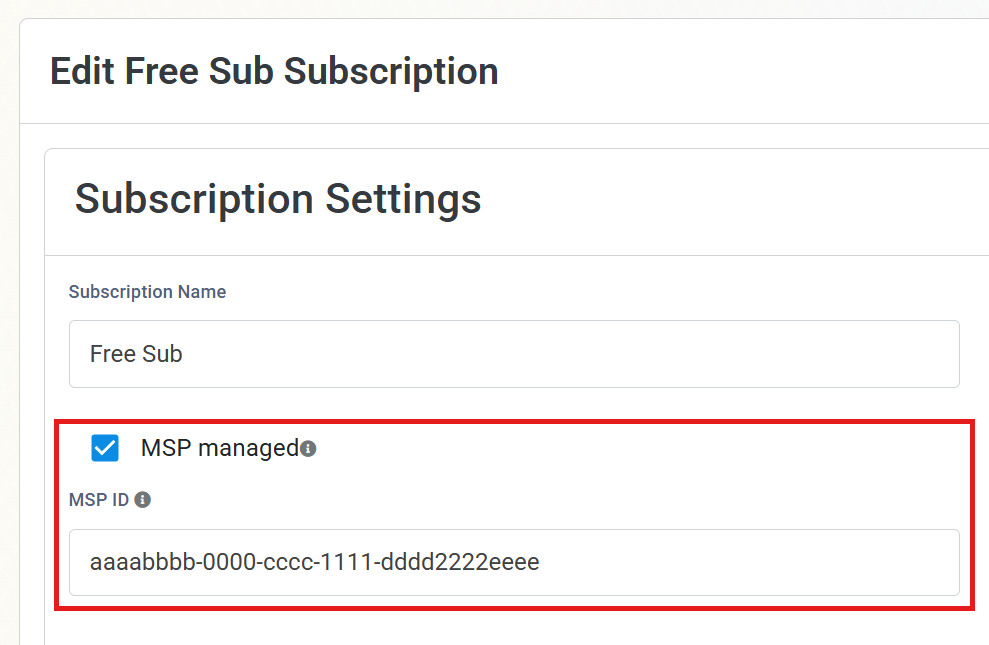
In the subscription you will manage, under Subscription Settings, check MSP managed.
-
In the MSP ID field, enter your tenant ID.
-
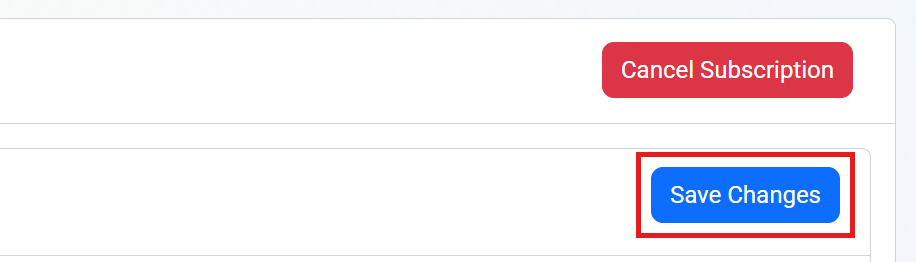
Click Save Changes in the top right of the Subscription Settings section.
-
Go to the EZRADIUS portal, such as usa.ezradius.io, and click Settings in the left-hand menu.
-
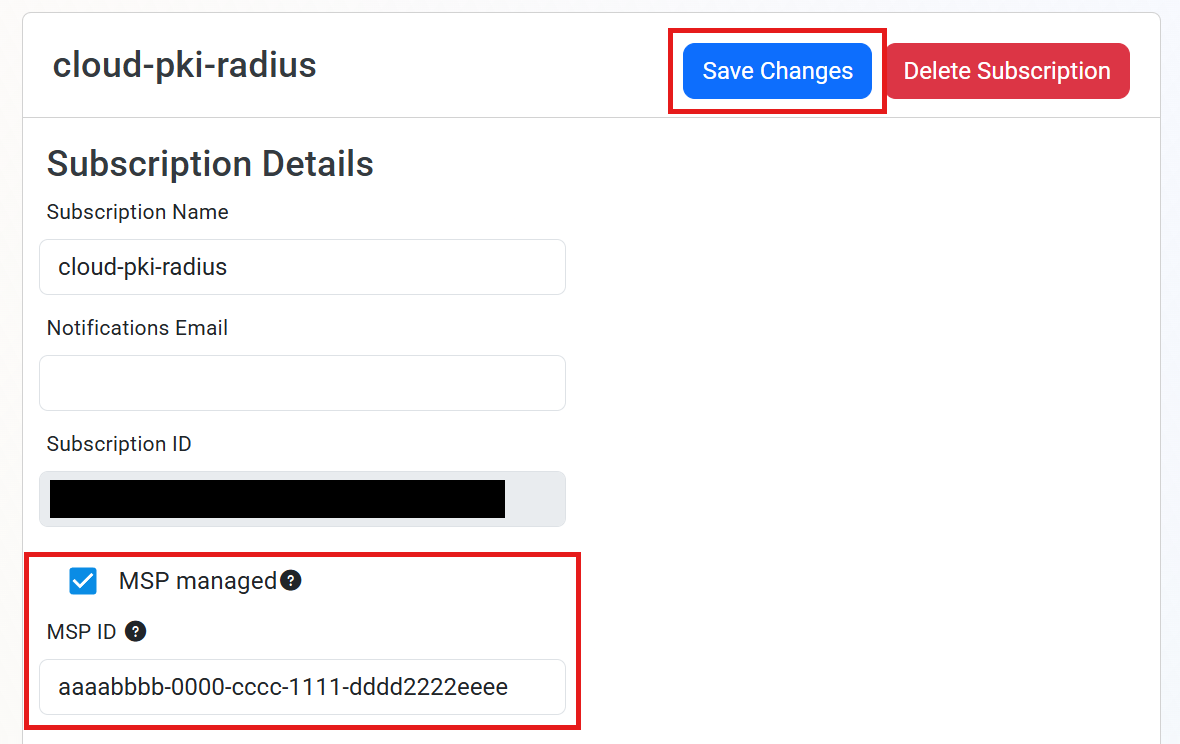
Under Subscription Details, check MSP managed.
-
In the MSP ID field, enter your tenant ID.
-
Click Save Changes at the top of the page.
Step 4: How to Select Your Customer in the Keytos Partner Portal
Once your customer has saved your tenant ID, you can open their subscription from the Keytos Partner Portal.
-
Sign in to the Keytos Partner Portal with your partner account.
-
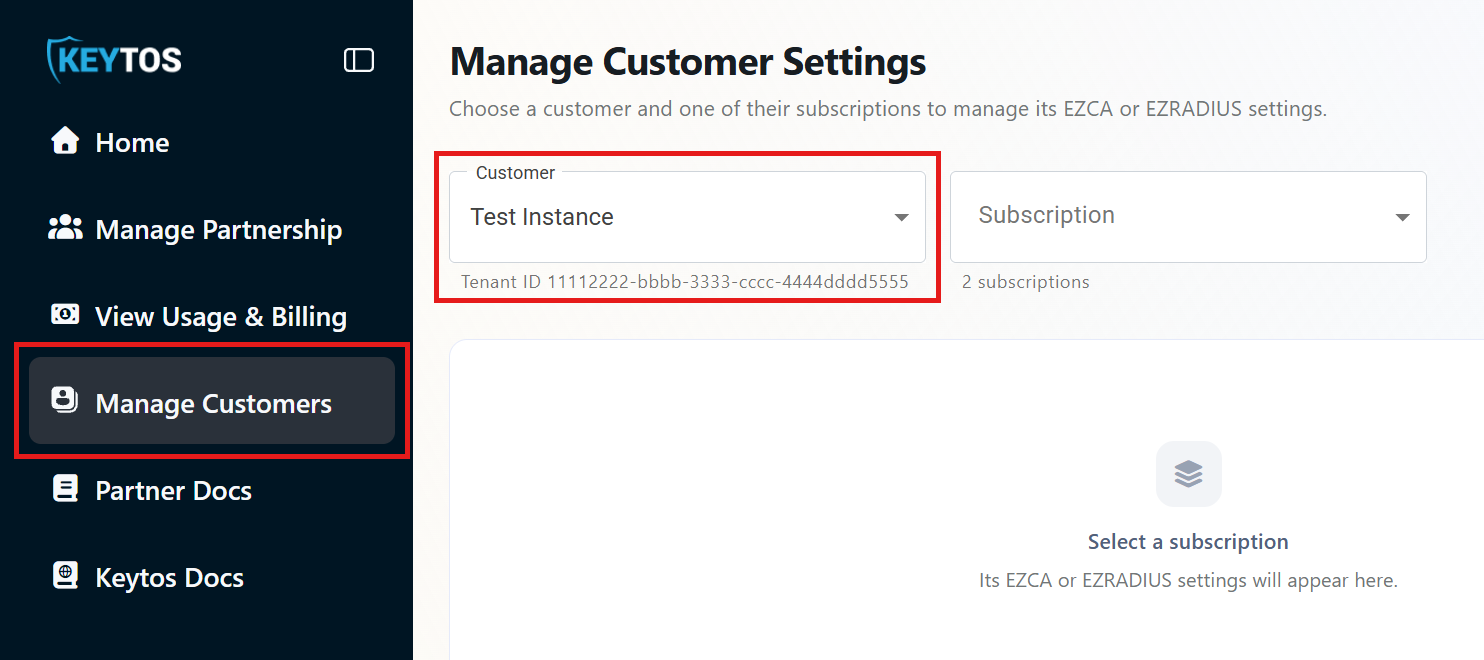
From the left-hand menu, click Manage Customers.
-
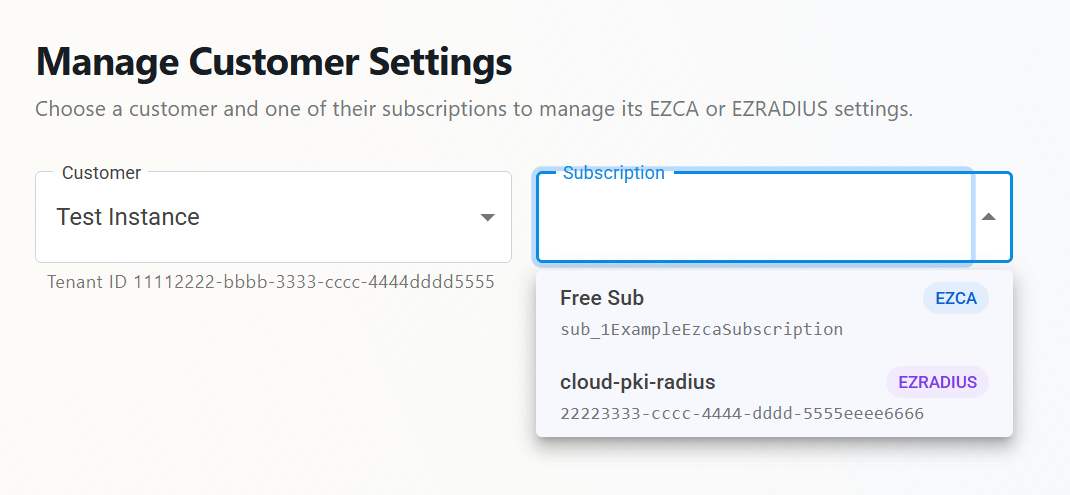
From the Customer dropdown, select your customer. The customer’s tenant ID shows under the field, so you can confirm you picked the right one.
Step 5: How to Select Your Customer’s EZCA or EZRADIUS Subscription
-
Wait for the subscription list to load. It can take up to a minute, and the page may show a No subscriptions for customer name message until it finishes. When it’s ready, the text under the Subscription field shows the number of subscriptions, such as
2 subscriptions. -
From the Subscription dropdown, select the subscription you want to manage. Each subscription shows its name, its product (EZCA or EZRADIUS), and its subscription ID.
-
The subscription’s menu opens on the left. The text under the Subscription field shows the product and the portal instance the subscription lives in, such as
EZCA · portal.ezca.ioorEZRADIUS · usa.ezradius.io.
How to Manage Your Customer’s EZCA Cloud PKI Subscription
When you select an EZCA subscription, you get the tools to manage the customer’s Certificate Authorities. Use the menu on the left to move between sections.
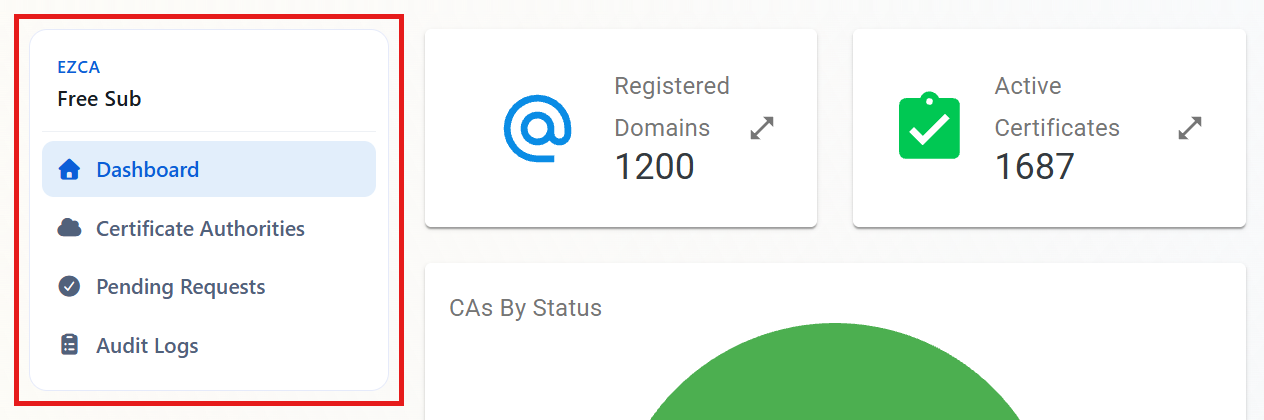
These sections use the same screens as the EZCA portal, so you can follow the EZCA documentation for each task:
| Section | What You Can Do | EZCA Guides |
|---|---|---|
| Dashboard | View the customer’s registered domains, active, revoked, and expiring certificates, their CAs by status and key type, their certificates by creation type, and CA auto-renewal. | EZCA portal overview |
| Certificate Authorities | Open View Details to update a CA’s lifecycle and auto-renewal settings, notification emails, CRL settings, and IP restrictions, download the CA certificate, or renew the CA. Open View Requirements to update the CA’s issuance policy, request certificates as an administrator, and view or rotate the SCEP challenge password of SCEP CAs. Open View Active Certificates to download or revoke issued certificates. Delete CAs. | CA validity and lifecycle settings, CRL settings, restrict CA access by IP address, certificate issuance policy, renew a CA without an outage |
| Pending Requests | Review requests to add or delete domains on the customer’s CAs that are waiting for approval. | How domain registration approval works |
| Audit Logs | Search the customer’s Certificate Logs and CA Change Logs for a date range. | EZCA audit logs and SIEM export |
Creating new Certificate Authorities and registering new domains are not available from the Keytos Partner Portal. Ask a PKI Admin in your customer’s tenant to create the CA or register the domain in their EZCA portal. Once a new CA is created, it shows up in the customer’s Certificate Authorities list in the Keytos Partner Portal, where you can manage it.
How to Manage Your Customer’s EZRADIUS Cloud RADIUS Subscription
When you select an EZRADIUS subscription, you get the tools to manage the customer’s RADIUS authentication, from network policies to local users and Wi-Fi profiles. Use the menu on the left to move between sections.
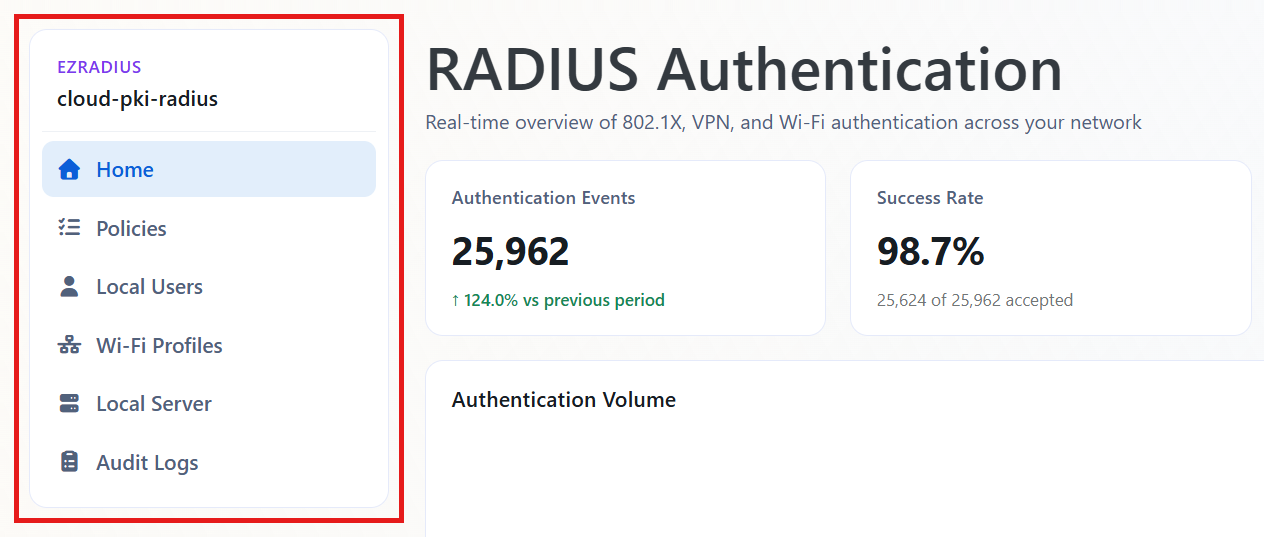
These sections use the same screens as the EZRADIUS portal, so you can follow the EZRADIUS documentation for each task:
| Section | What You Can Do | EZRADIUS Guides |
|---|---|---|
| Home | View the customer’s RADIUS authentication overview, including authentication events, success rate, rejected authentications, top reject reasons, busiest NAS clients, and the identities with the most failures. | How to troubleshoot RADIUS errors |
| Policies | Download the RadSec CA certificate, see the RADIUS server IP addresses, and create, update, or delete network policies (shown as Network Profiles in the portal). This includes access policies, trusted certificate authorities, server certificates, and allowed IP addresses with their shared secrets. | Create Cloud RADIUS network policies, certificate-based RADIUS policy, add IP addresses dynamically |
| Local Users | Add and delete local RADIUS users, update their passwords, and get their passwords (unless the user manages their own password and the customer doesn’t allow admins to retrieve it). Add, bulk upload, or download the MAC addresses used for MAC Authentication Bypass (MAB). | Local RADIUS users, MAC Authentication Bypass |
| Wi-Fi Profiles | Create, update, and delete the customer’s self-service Wi-Fi profiles, assign them to users and groups, and notify users to install them. | Self-service Wi-Fi profiles |
| Local Server | Set up, update, and delete the customer’s local RADIUS servers, check their health, and re-download their settings. | Local RADIUS server for backup, update a local server |
| Audit Logs | Search the customer’s Authentication Logs and Accounting Logs for a date range. | View EZRADIUS audit logs |
The Keytos Partner Portal can’t search your customer’s Entra ID directory for users or groups. You need to get the object ID of each user or group from your customer before assigning Wi-Fi profiles. Your customer can find the object ID on the user’s or group’s Overview page in the Microsoft Entra admin center.
What Does Your Customer Keep Managing?
The subscription Settings page is not part of the Keytos Partner Portal, so your customer keeps control of these tasks in their own EZCA or EZRADIUS portal:
- Turning MSP management on or off, or changing the MSP ID.
- Managing PKI Admins (EZCA) or Owners, Network Administrators, and Log Readers (EZRADIUS).
- SIEM export, payment information, and canceling or deleting the subscription.
- Creating new CAs, registering new domains, and transferring CAs between subscriptions (EZCA).
If a customer asks you to change one of these, walk them through it in their portal or point them to the EZCA or EZRADIUS subscription management guides.
How to Troubleshoot Missing Customers and Subscriptions
Why Isn’t My Customer in the Customer Dropdown?
The Customer dropdown lists the customer deals you can manage. If a customer is missing:
- No deal is registered for the customer: register a deal with the customer’s Entra ID tenant ID.
- You don’t have access to the deal: ask a partnership Owner to add you as a Deal Manager on your partnership or on that customer’s deal.
Why Does It Say the Customer Has No Subscriptions?
The Keytos Partner Portal shows the following message when it doesn’t find any subscriptions that the customer shared with you. It also shows it while the subscription list is still loading:
No subscriptions for <customer name>
<customer name> has no EZCA or EZRADIUS subscriptions managed by your partner organization yet.
Check these common causes:
- The subscription list is still loading: wait about a minute, then refresh the page before you troubleshoot further.
- The customer didn’t save the MSP setting: ask them to confirm MSP managed is checked and that they clicked Save Changes.
- The MSP ID is wrong: the MSP ID must be your Microsoft Entra ID tenant ID, not your company name, partner ID, or the customer’s own tenant ID.
- The subscription is in a different tenant: the subscription must be created in the same Entra ID tenant as the tenant ID in your customer deal. Compare the tenant ID under the Customer field with the tenant the customer signs in to EZCA or EZRADIUS with.
Still stuck? Reach out to your Keytos Partner Manager or email partner@keytos.io.
Next Steps - How to Track Your Customers’ Usage and Billing
Now that you can manage your customers’ subscriptions, you can keep track of their usage and your revenue share from the Keytos Partner Portal.
🚀 View Customer Usage and Billing